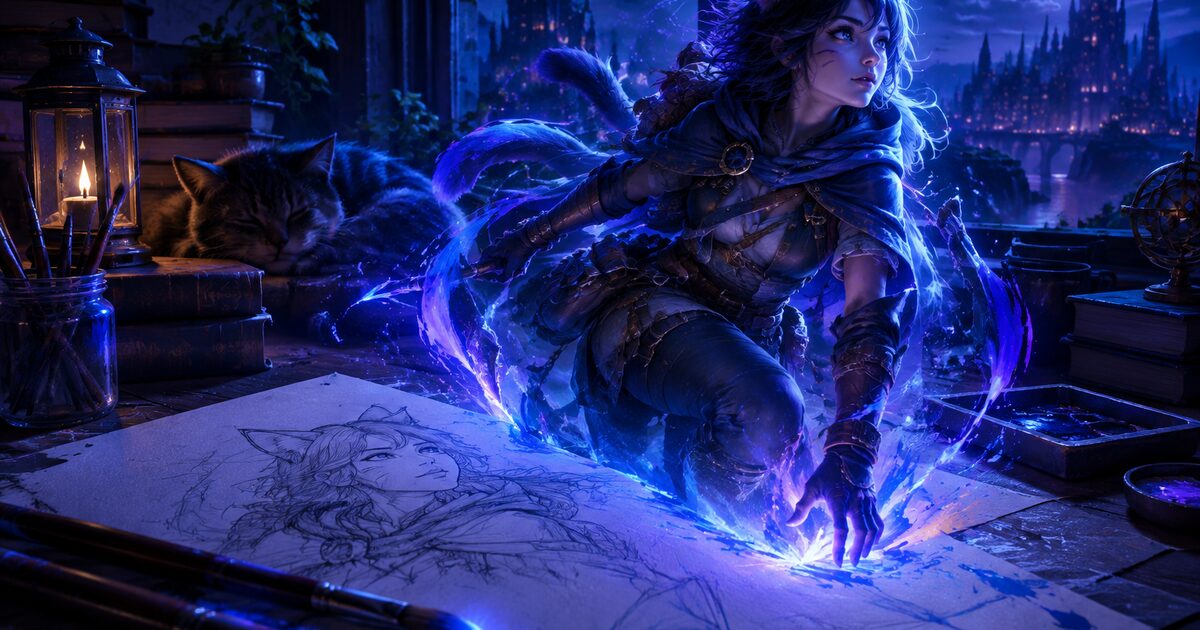
What is GPT Image 2.5?
GPT Image 2.5 is OpenAI’s image generation model introduced on September 8, 2026, alongside ChatGPT Images 2.5. OpenAI says it brings more natural lighting, richer textures, better preservation of subjects in reference photos and more reliable editing across multiple turns.
OpenAI also reports that Images 2.5 reduced generation latency by up to 50 percent compared with Images 2.0. For developers there are two API models: GPT-Image-2.5 Flare, for fast, high-quality everyday generation, and GPT-Image-2.5 Sunburst, which adds precision for detailed work at the cost of longer generation times.
In KOORI, GPT Image 2.5 is the starting choice because it balances speed, faithfulness to your idea and polish. It typically returned a picture in about 20 seconds in our tests.
What GPT Image 2.5 is good at
Here is where GPT Image 2.5 stands out, based on the maker's own documentation and on what we saw while testing it inside KOORI.
- Faithful to references:
- Keeps a character recognizable when you edit or build on an existing picture.
- Natural light and texture:
- Portraits feel grounded, with believable fabric, skin and materials.
- Reliable editing:
- Follows change requests closely, which helps when refining an outfit or expression.
- Balanced:
- A good middle ground between the fastest and the most detailed models in KOORI.
Using GPT Image 2.5 for characters and fandoms
A fandom starts with a face people recognize. GPT Image 2.5 is good at that first portrait because it follows a description closely and keeps details like a scar, a scarf or a lantern where you asked for them. Those visual anchors are what make fan art and Reels of your character instantly readable.
It is also strong for World pictures, the extra scenes that show your character’s daily life. Because it preserves subjects well, you can create a series of images, such as a morning in the bakery or a festival night, where your character still looks like themselves.
Nova, a cat-eared adventurer with a patched green cloak, a brass compass on a cord and one ear that always droops, standing at the edge of a misty forest at dawn, curious and slightly nervous.
How to use GPT Image 2.5 in KOORI
You can try GPT Image 2.5 without setting up anything technical. KOORI handles the connection, the prompt formatting and the character references, so you can focus on the story.
The difference between trying GPT Image 2.5 on its own and trying it in KOORI is what happens after the picture. Your portrait becomes a character with a voice, a personality and a home world that you can talk to right away. The same picture is later used as a reference for World scenes and Reels, so one good image keeps paying off as your story grows.
From idea to character portrait
- Step 1: Describe your character. Start the character creator and write a short idea: who they are, the world they live in and one habit or contradiction that makes them interesting.
- Step 2: Choose an art style. Pick 3D, anime, illustrated or another style. The style shapes the prompt the model receives, so the same idea can look very different.
- Step 3: Select GPT Image 2.5 as the picture model. Open the Picture model menu. Each option lists what it is good at and how long it usually takes, and your choice is remembered for next time.
- Step 4: Compare four takes. KOORI asks for four pictures at once. Tap any of them to see it full screen at its real size before choosing.
- Step 5: Use it, or make four new ones. Keep the picture that fits best, or switch models and try again. Your chosen portrait becomes the reference for later scenes and Reels.
- Step 6: Chat, then add World pictures. Talk with your new character, then create extra scene pictures in their World with the same model menu.
Tips for better results with GPT Image 2.5
Name two or three identity anchors and repeat them every time: a color, an accessory and a feature. GPT Image 2.5 is at its best when it has something specific to preserve.
Describe the mood as well as the look. Words like curious, tired or secretly proud change posture and expression more than another paragraph about clothes.
The model you choose is the one KOORI asks first. If that provider is briefly unavailable, KOORI may fall back to another picture model so you still get your four takes; safety rejections are never sent to a different model.
GPT Image 2.5 or another model?
Every model has a personality of its own. GPT Image 2.5 is one of several picture models available in KOORI, and the right choice depends on whether you care most about speed, price or detail for a given scene. Compare them side by side with the same character to find your favorite.
GPT Image 2.5 FAQ
What is the difference between GPT Image 2.5 Flare and Sunburst?
OpenAI describes Flare as fast, high-quality everyday generation and Sunburst as an extra level of precision for detailed work with longer generation times.
Is GPT Image 2.5 better than GPT Image 2?
OpenAI reports sharper details, better reference fidelity and up to 50 percent lower latency than Images 2.0. GPT Image 2 is still available in KOORI if you prefer its look.
How long does GPT Image 2.5 take in KOORI?
About 20 seconds per picture in our tests. KOORI asks for four at once and shows a progress bar for each.
Can I switch models for the same character?
Yes. You can make four pictures with one model, then switch and make four more. Many creators use a fast model to explore and a detailed one for the final portrait.
Sources and further reading
GPT Image 2.5 is a product of OpenAI. KOORI is not affiliated with or endorsed by OpenAI. Model availability, prices and speeds can change; check the current app before relying on a specific detail.
More from KOORI Journal